Transport Module
Workspace Overview
Understanding the Open Nexus organization workspace and navigation.
3. Understanding the Open Nexus Organization Workspace
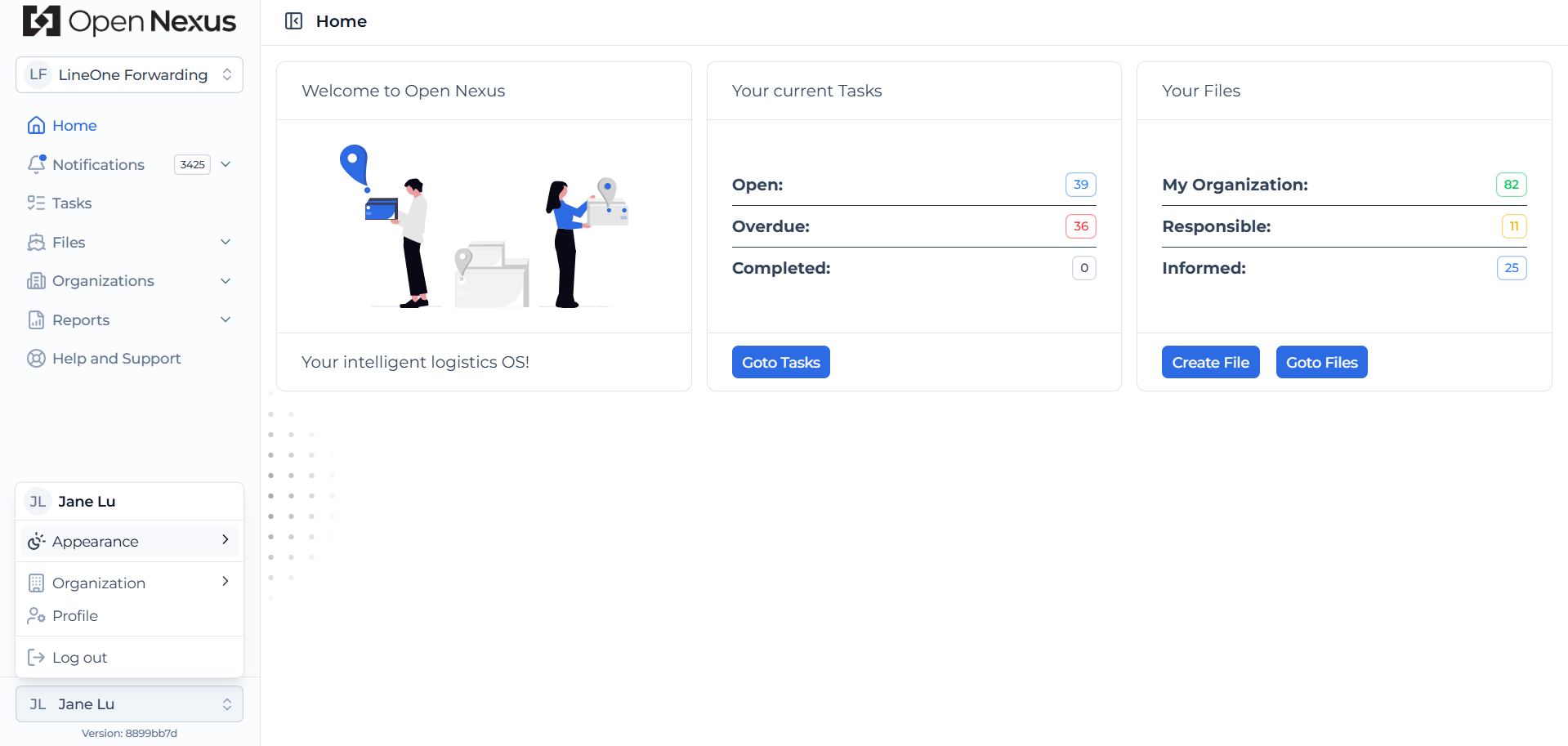
After logging in, you will land on the Home Dashboard within your organization workspace.
Your main navigation is located on the left-hand side, acting as your primary control panel for managing daily operations.
Here's how each section helps you:
- Home Dashboard
Displays a quick overview of your current tasks and Booking Files, including open, overdue and completed tasks, and files where you are Responsible or Informed. You can also quickly navigate to your tasks, create a new Booking File, or go to your Booking Files. - Notifications
Displays Open Nexus notifications related to Booking Files, tasks, documents, schedules, chat messages, and other workflow activities. - Tasks
Opens the Task View Table, providing a centralized view of tasks across Booking Files where you are responsible for the task. - Files
Provides access to your Booking File View Table and the option to Create a File to start a new shipment workflow. - Organizations
Provides access to the Organization Contact Directory, where you can view and manage Freight Forwarding Organizations, Shippers, and Consignees. - Reports
Provides access to reports and data exports generated from Open Nexus. - Help and Support
Provides access to Open Nexus help resources and supporting documentation.
At the bottom of the navigation, click your user profile to access:
- Appearance – Manage your preferred application appearance.
- Organization – Access and manage your organization settings.
- Profile – Access and manage your personal profile information.
- Log out – Sign out of Open Nexus.
Hint:
Think of the platform as three connected layers: Booking Files (what you manage), Tasks (what you do), and Organizations (who you work with).