Reports
14. Reports & Data Exports
The Reports section allows you to create reusable reports from your Open Nexus data and generate data exports when needed.
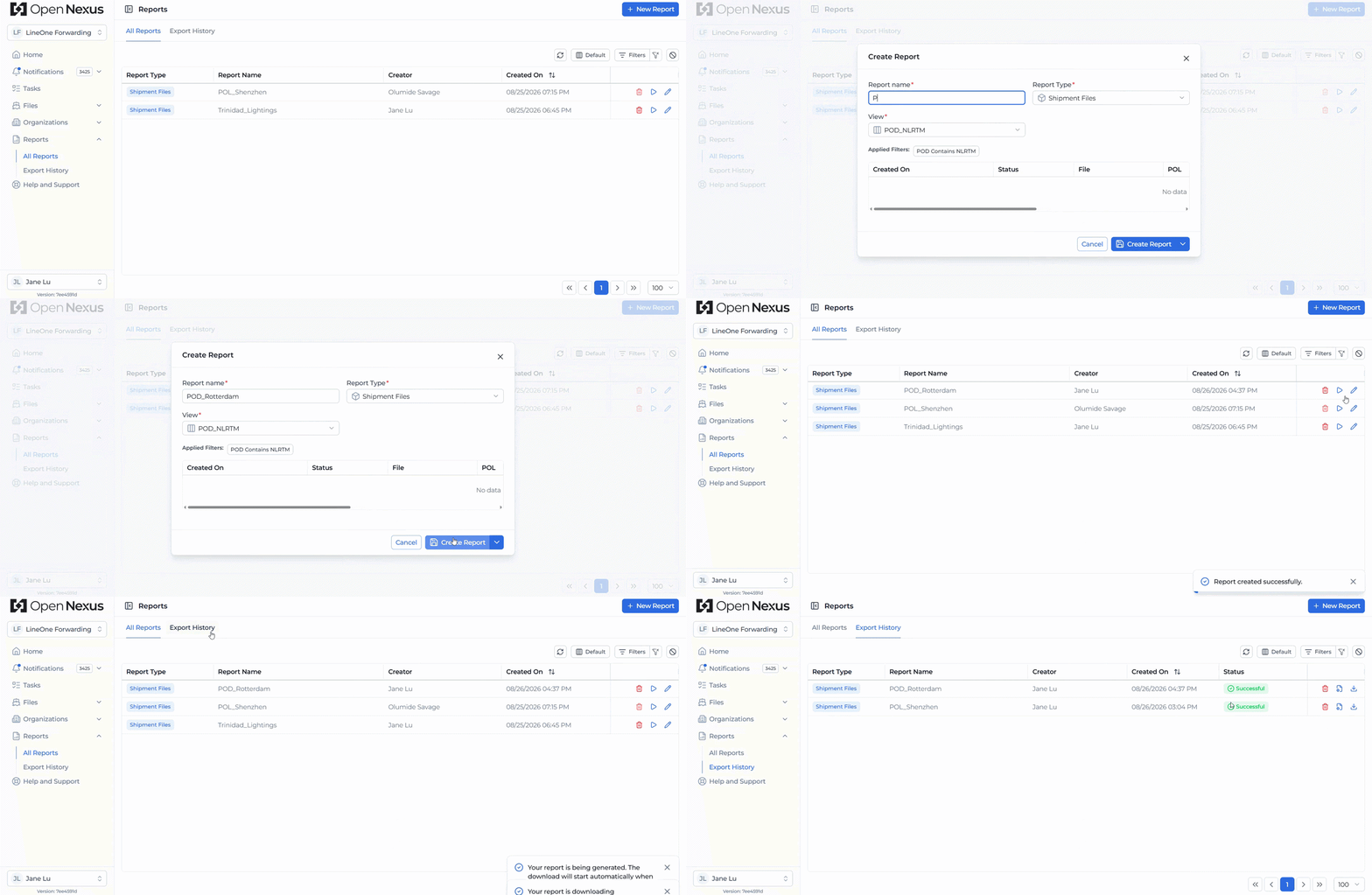
Reports are built from Saved Views, allowing you to use the filters, selected columns, column arrangement, and sorting already configured in a Saved View as the basis for your report.
Access Reports from the left-hand menu. The Reports section is divided into All Reports and Export History.
All Reports
The All Reports tab provides a centralized view of reports created within your organization.
The table shows key information including:
- Report Type
- Report Name
- Creator
- Created On
From this page, users can run existing reports, duplicate reports, or edit and delete reports where they have permission.
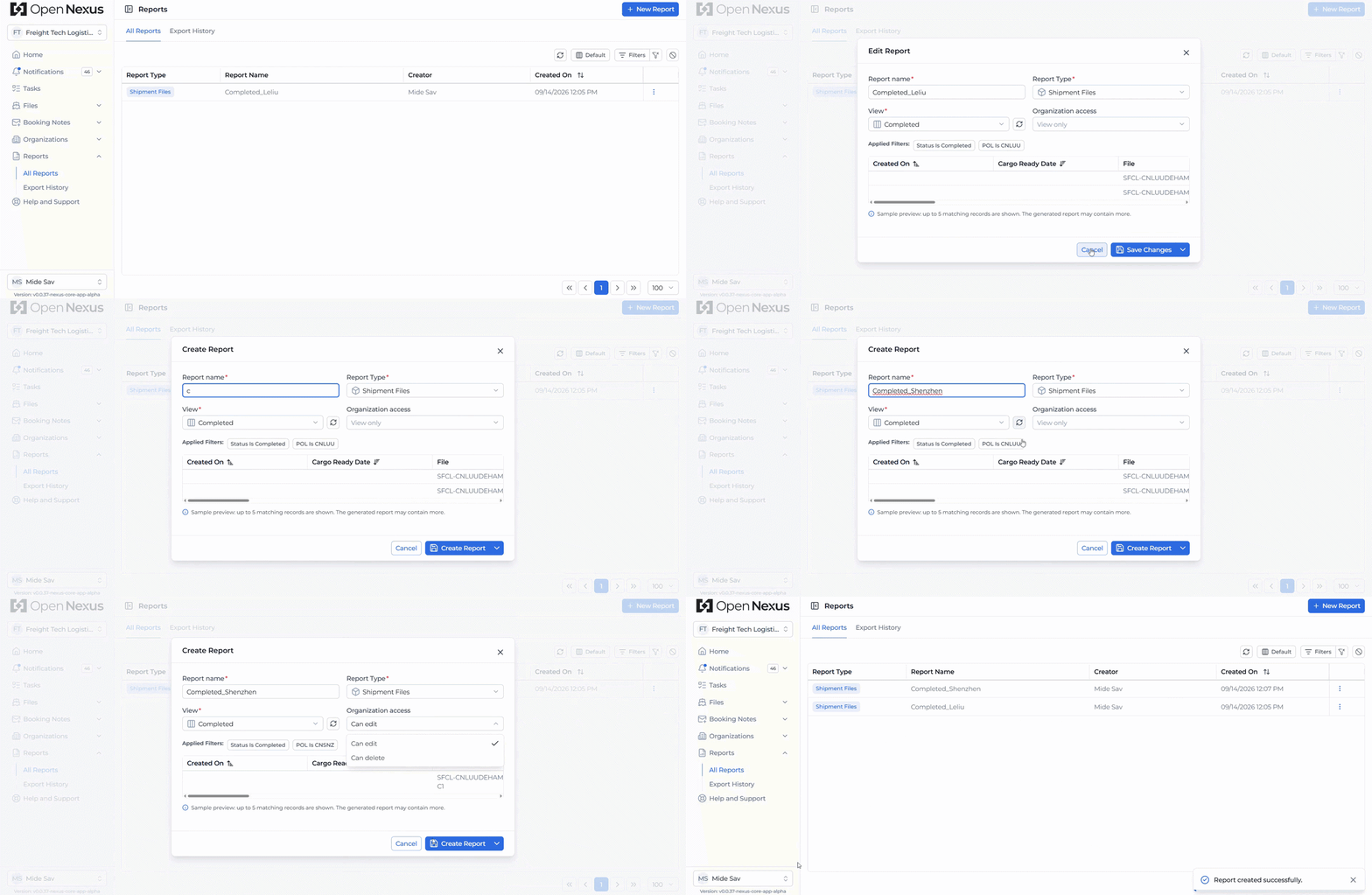
By default, only the Report Creator can edit or delete a report. When creating or editing a report, the creator can allow other users within the organization to edit or delete the report. These permissions are managed separately.
The Report Creator always retains permission to edit and delete their report.
Creating a New Report
To create a report:
- Click + New Report in the top-right corner.
- Enter a Report Name.
- Select the Report Type. Currently, Shipment Files is supported.
- Select the Saved View you want to use for the report.
- Review the Report Preview to confirm the configuration and matching data.
- Choose whether to allow other users in your organization to Edit or Delete the report.
- Click Create Report to save the report.
The report captures the configuration of the selected Saved View at the time the report is created, including its filters, selected columns, column arrangement, and sorting.
The Report Preview displays up to five matching Booking Files using the configuration of the selected Saved View. This allows you to confirm the resulting columns and data before creating the report.
How Reports Work with Saved Views
Once a report is created, its configuration is stored as a snapshot of the Saved View used at that time.
If you later change the original Saved View, the existing report will continue to use its previously saved configuration. This ensures changes to a Saved View do not automatically change the configuration of an existing report.
To update an existing report with the latest configuration of its linked Saved View:
- Edit the report.
- Select Update to Latest View.
- Review the updated Report Preview.
- Click Save to apply the changes.
Update to Latest View retrieves the latest filters, selected columns, column arrangement, and sorting from the linked Saved View. The report is only permanently updated after you save your changes.
Hint:
Use Saved Views to first prepare the columns, arrangement, filters, and sorting you need, then create a Report from that view.
Duplicating a Report
You can use Duplicate Report to create a new report based on an existing report without starting again from scratch.
The duplicated report copies the existing report configuration, including its selected columns, column arrangement, filters, and sorting.
When duplicating a report:
- Select the Duplicate Report action for the report you want to copy.
- Enter a new Report Name.
- Review the report configuration.
- Create the report.
You become the Creator of the duplicated report, and the new report is independent of the original report.
Report names must be unique within your organization.
Hint:
Duplicate a report when you want to reuse an existing report setup as the starting point for a new report.
Report Edit and Delete Permissions
When creating or editing a report, you can control whether other users within your organization can edit or delete it.
The following permissions are available:
- Allow Organization to Edit – allows other users in your organization to edit the report.
- Allow Organization to Delete – allows other users in your organization to delete the report.
Both permissions are off by default and can be enabled independently.
If neither permission is enabled, only the Report Creator can edit or delete the report. The Report Creator always retains edit and delete access regardless of the selected permissions.
Running a Report
From All Reports, click the Run action for the report you want to generate.
Running a report uses the configuration stored in that report to generate a new data export. Once successfully generated, the export can be accessed from Export History.
Export History
The Export History tab provides a record of report exports that have been generated.
The table displays:
- Report Type
- Report Name
- Creator
- Created On
- Status
A Successful status indicates that the report export has been generated successfully and is available for download.
From the available actions, you can download the generated export.
Only the creator of the export can manage or delete the generated export.
Exported data is stored in Open Nexus for 60 days.
Hint:
Download any exports you need to retain permanently before the 60-day storage period expires.